October 28, 2026
In today's digital age, computers have become indispensable tools in our daily lives. However, like any other electronic device, they're prone to issues and malfunctions. Understanding basic computer repair tips can save you both time and money. Let's take a moment to equip you with essential knowledge to troubleshoot common issues and maintain your computer's health. By following these tips, you can ensure that your computer is functioning optimally and reliably.
Understanding Common Computer Problems
Identifying Symptoms of Problems
Recognizing the symptoms of computer problems early can prevent minor issues from developing into major ones. Common indicators that your computer may need attention include unusual noises, frequent crashes, or a significant decline in performance. Many users also experience issues such as programs taking longer to load or system freezes that interrupt work. According to Pew Research Center, 52% of home internet users report that their computer has slowed down or is not running as fast as it used to. It's crucial to listen to these signs, as they often point to underlying problems that require addressing.
Recognizing Hardware vs. Software Issues
One of the most important skills in computer repair is distinguishing between hardware and software issues. Hardware problems often manifest physically, through tactile sensations, strange noises, or visible malfunctions. For example, if your computer fails to start, it could be due to hardware issues like a faulty power supply or damaged motherboard. On the other hand, software issues are typically indicated by error messages or unusual computer behavior, such as an application failing to launch. Differentiating between these two categories of problems is crucial for selecting the right course of action.
Tools Needed for Basic Diagnostics
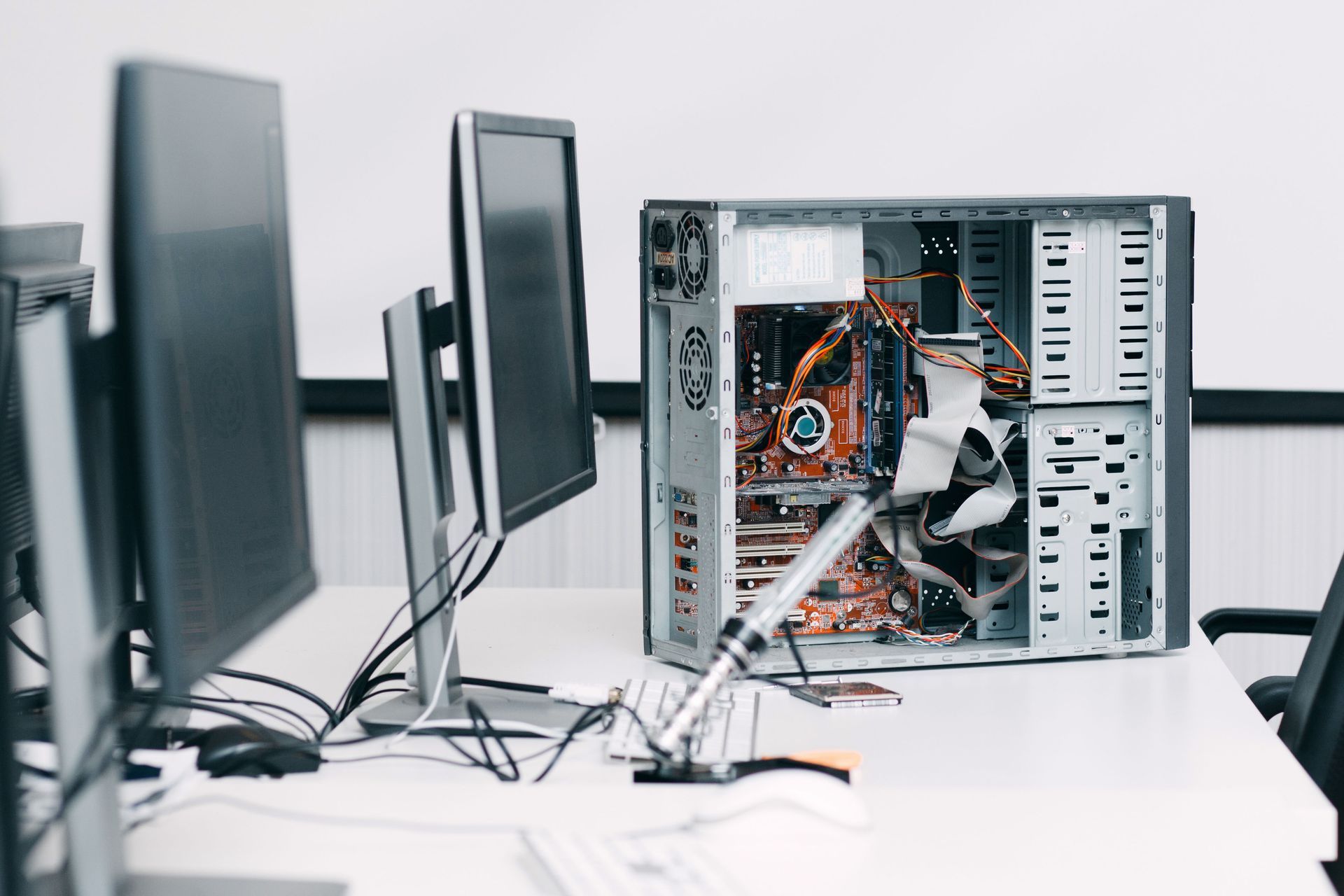
Equipping yourself with the right computer repair tools is foundational for conducting effective computer diagnostics. Basic tools include a set of screwdrivers for opening the computer case, which is necessary for inspecting internal components. Additionally, having cans of compressed air and a microfiber cloth is essential for cleaning dust buildup that might impact performance. Software tools like antivirus programs, disk management utilities, and hardware diagnostic software provide deeper insights into potential issues. Ensuring that you have these tools readily available helps you address and preemptively manage many common computer issues.
Key Differences Between Laptops and Desktops
Understanding the differences between laptops and desktops can help when diagnosing and resolving computer problems. Laptops are compact and portable, which often makes them prone to overheating due to cramped internal components. They have specialized hardware, such as integrated GPUs, and their compact nature makes parts like cooling fans more susceptible to dust and debris. On the contrary, desktops generally provide better airflow and easy access to components, which facilitates upgrades and computer repair. Recognizing these differences allows users to provide different levels of care and maintenance for each type of computer.
Seeking Professional Help
While many computer issues can be addressed through basic troubleshooting, certain situations necessitate professional intervention. Complex computer repair problems like motherboard failures, intricate software conflicts, or severe malware infections often require the expertise of a trained technician. If you've exhausted all available diagnostic tools and troubleshooting steps without success, it's likely time to consult a professional. Continuing to tinker with a malfunctioning system without sufficient knowledge can lead to greater, and more expensive, issues down the line. Therefore, knowing when to delegate repair tasks is essential to maintaining the long-term health of your computer.
Seeking professional help requires understanding the limitations of your skills and the severity of the issue. For instance, if you're experiencing recurring blue screen errors, regardless of attempted fixes, professional diagnostics may uncover underlying hardware defects or software conflicts. Additionally, if replacing parts such as power supplies or CPUs seems daunting, it's safer to have an experienced technician handle the task. Trusting professionals not only assures a higher likelihood of resolution but also provides an opportunity to learn how you might handle similar issues in the future.
Maintaining Your Computer Hardware
Regular Cleaning of Internal Components
Routine cleaning of a computer's internal components is critical for maintaining optimal performance and longevity. Dust and debris accumulation in ventilation areas or on fans can hinder airflow, leading to overheating and potential hardware damage. It's advisable to clean these areas at regular intervals using cans of compressed air and a soft cloth, taking care not to damage sensitive parts. For desktops, opening the case is straightforward, allowing for easy access to clean various components. Laptops, being more compact, require a gentler approach, often necessitating professional cleaning to avoid damage.
Importance of Proper Ventilation and Cooling
Proper ventilation and cooling are paramount in ensuring the longevity and efficiency of computer hardware. Heat dissipation is a primary concern, as excessive heat can slow down a computer's performance and cause irreversible damage to sensitive components like the CPU and GPU. Ensuring that there is adequate airflow within the computer case prevents overheating. For desktops, consider installing additional fans or opting for liquid cooling systems to enhance cooling. In laptops, regularly clearing vents and fans of dust can optimize airflow and cooling efficiency.
Tips for Handling Hardware Components Safely
Handling hardware components requires a careful, considered approach to prevent damage during maintenance or upgrades. Before working on any internal parts, it is essential to power down the computer and disconnect it from any electrical outlets, reducing the risk of electric shock and component damage. A vital tool in safe handling is an anti-static wrist strap, which helps prevent electrostatic discharge, which is a phenomenon that can destroy sensitive electronics. Equipping yourself with the right tools also emphasizes gently maneuvering around delicate points and connections to avoid breakage or other issues.
Checking and Upgrading RAM
Random access memory (RAM) is crucial for a computer's performance, influencing how efficiently it can run multiple programs simultaneously. Regularly checking your system's available RAM helps determine if an upgrade is necessary to meet performance needs. A common sign of insufficient RAM is sluggish behavior when too many applications run at once, which impacts overall productivity. To identify whether RAM is the bottleneck, users can monitor system performance using built-in task manager tools that show current RAM usage. Ensuring that your system has sufficient and correctly functioning RAM is vital for optimal operation.
Ensuring Hard Drive Health and Longevity
Hard drives are essential for data storage, making their health critical for both performance and data safety. Over time, hard drives can develop issues such as bad sectors or mechanical failures, leading to data loss or reduced access speeds. Monitoring drive health with software tools can provide insights into potential problems before they become critical. Tools like disk utilities can run diagnostic tests and check for errors, while SMART monitoring tools provide detailed health reports. Regular checks ensure that any minor issues are addressed, minimizing the risk of unexpected data loss.
Optimizing Computer Performance
Removing Unnecessary Startup Programs
One common cause of slowed computer start-up times is the presence of unnecessary programs configured to launch upon boot. Many software installations default to automatically start, consuming resources and extending boot times. Reviewing and managing startup applications can significantly improve how quickly a system becomes operational. Built-in tools, like Task Manager for Windows, provide easy access for disabling programs from automatically launching.
Managing Disk Space Efficiently
Efficiently managing disk space is integral to optimizing computer performance and prolonging hardware longevity. Excessive file accumulation can lead to clutter and slow down system performance, making regular maintenance vital. Users can take advantage of built-in tools like Disk Cleanup for Windows, allowing for straightforward identification and removal of temporary files and other junk data. Engaging in routine disk cleanups can free substantial amounts of storage, enabling the system to operate more smoothly. Through consistent space management, users can alleviate performance bottlenecks associated with insufficient storage.
Mastering basic computer maintenance and troubleshooting empowers you to take control of your device's health, performance, and longevity. By learning to recognize early warning signs, routine care such as clearing dust buildup, managing startup programs, and monitoring system memory can keep your computer running smoothly for years to come. Ultimately, knowing your limits and seeking professional computer repair at Evergreen Computers, LLC when complex hardware or software failures arise ensures a balanced approach to maintenance. Reach out to us today for more helpful tips!